
Artykuły / Articles


NOTE 1! Raspberry pi 4B 8GB currently does not work properly with the RT kernel, so it is not recommended! Raspberry pi 4B 4GB should be used.
NOTE 2! The latest operating system at the time of writing this article is not compatible with the real-time kernel, so an older system should be installed. The tests were carried out on a system installed by NOOBS-2020-05-28. You can download it from the website: https://downloads.raspberrypi.org/NOOBS/images/ or by clicking on the link: NOOBS-2020-05-28
Format the FAT32 memory card and simply extract the contents of the NOOBS archive onto the memory card. Install the card in RPI and start it. Install: Raspberry Pi OS Full (32-bit) [RECOMMENDED]. Do not update the system after installation.
When installing the system, turn off the internet in rpi.
After installing the system, connect the Internet to RPI and proceed with the installation of Linumeric-LPT.
Installing Linumeric-LPT v1 and LinuxCNC on the Raspberry pi 4B is very simple and does not require specialist knowledge neither in the field of LinuxCNC nor in the field of the linux system itself.
An internet connection is required for installation.
During the installation, the packages will be installed and various dependencies will be configured. Tests were conducted on an RPI4B 4GB computer. The premise is that you have a fresh, clean system installed on your RPI computer before installing it.
If there are any problems with the installation, it may mean that some changes have previously been made to our system that block / do not allow for proper configuration. In this case, reinstall the system on the computer.
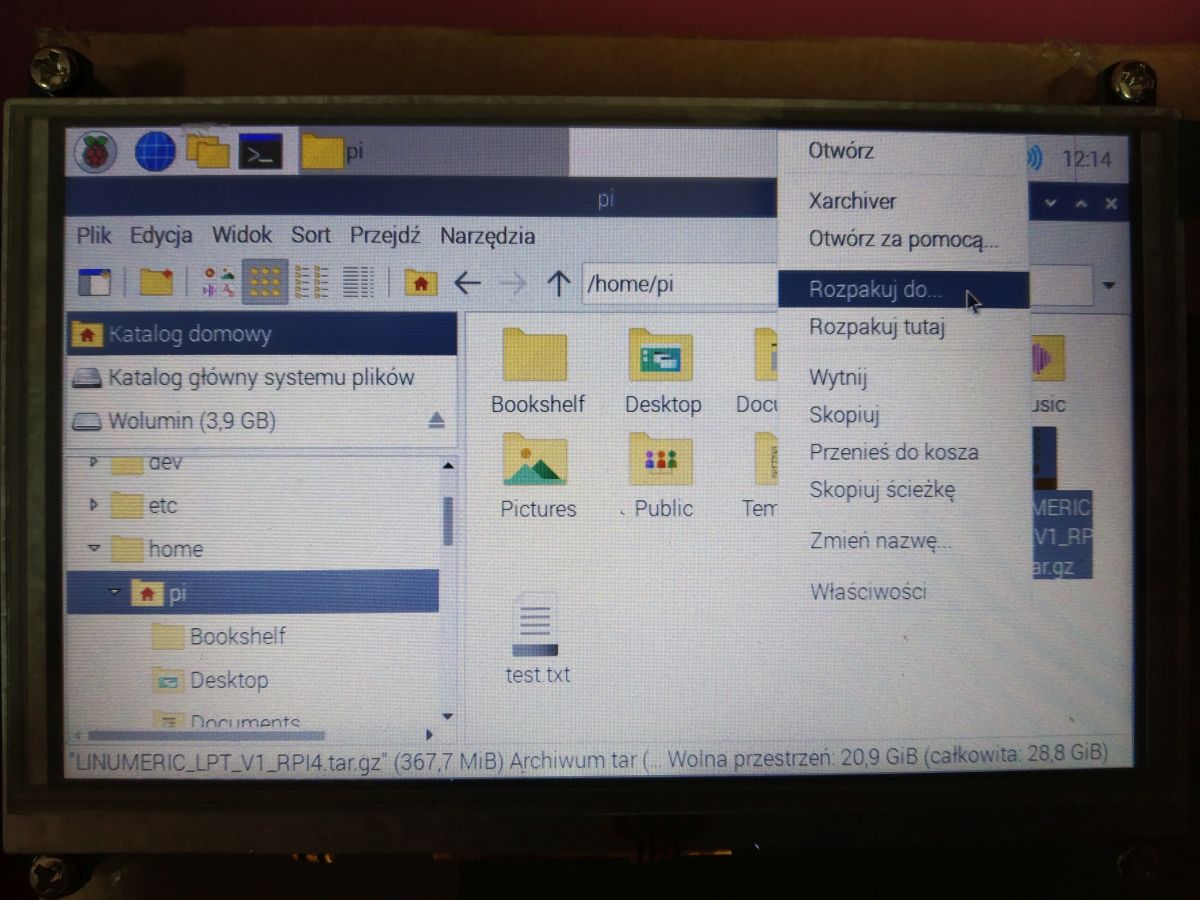
To install Linumeric-LPT on RPI, you need the LINUMERIC_LPT_V1_RPI4.tar.gz package, which should be downloaded and placed in the user's directory.

Unpack the package by right-clicking on it and selecting the Unpack to ...
Select a location in the user's directory and click Unpack.
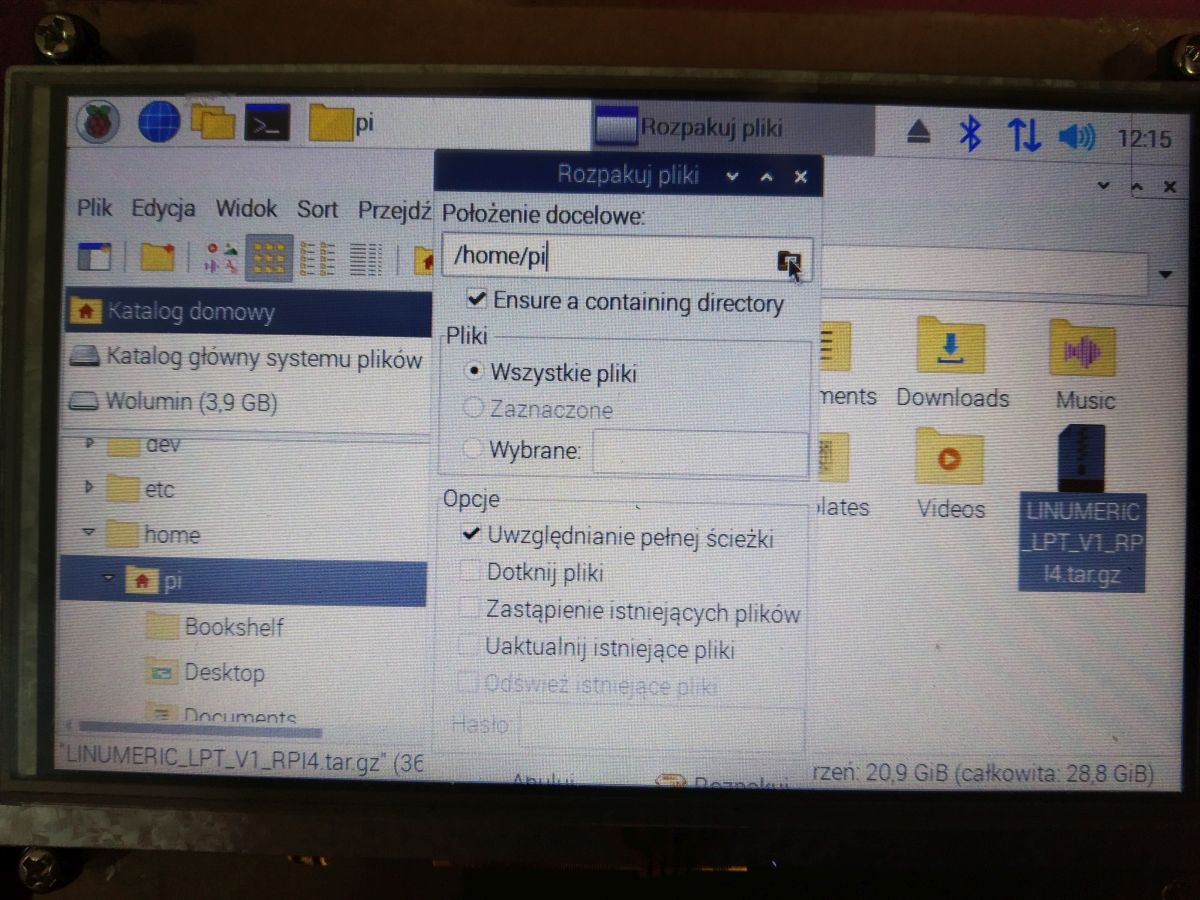
After unpacking, the downloaded LINUMERIC_LPT_V1_RPI4.tar package can be removed from the computer.
WARNING! There must be no spaces in the path to the LINUMERIC_LPT_V1_RPI4 directory.
Then go to the LINUMERIC_LPT_V1_RPI4 directory

Double-click the install_preempt_RT_kernel file and select Run in Terminal Emulator.
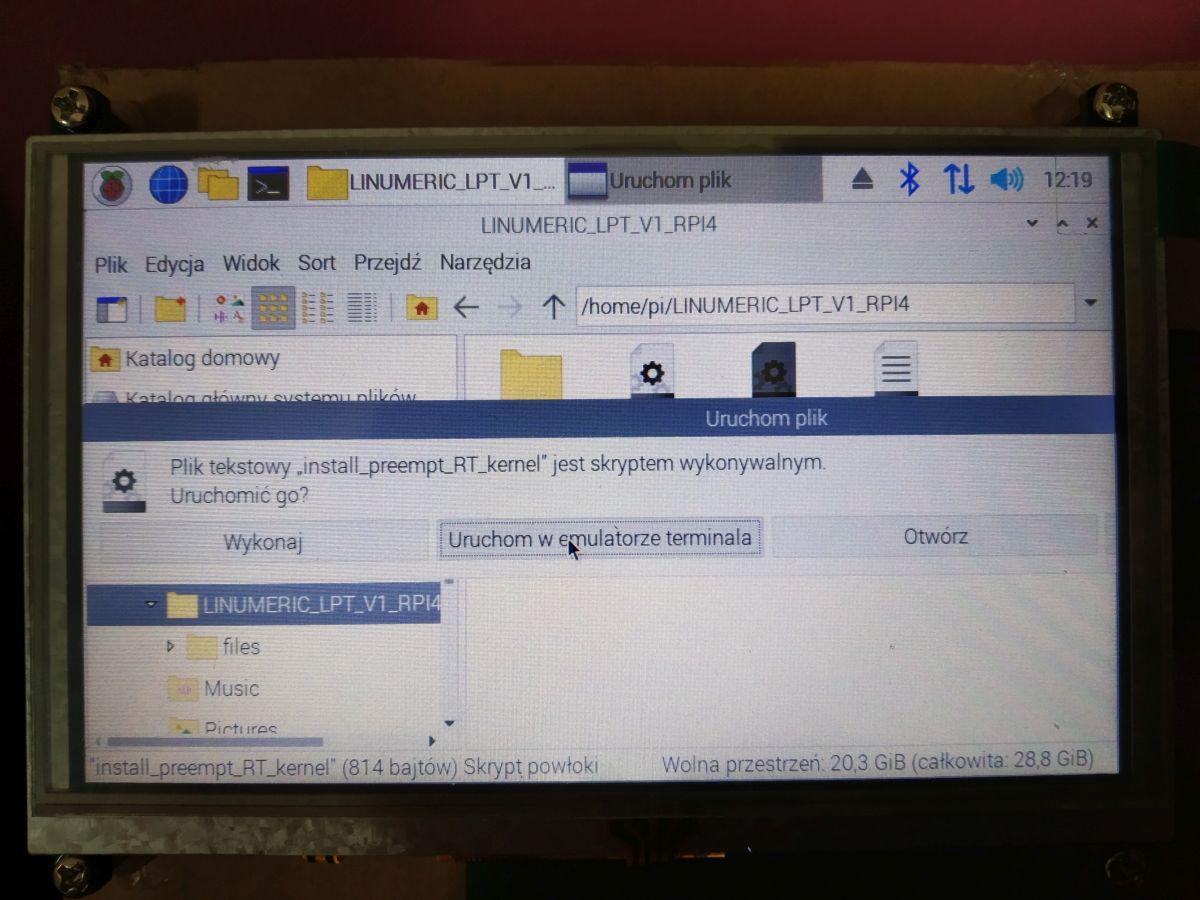
The preparation, building and installation of the RT kernel will begin, which may take up to several dozen minutes.

When config starts, select the save option and then exit.

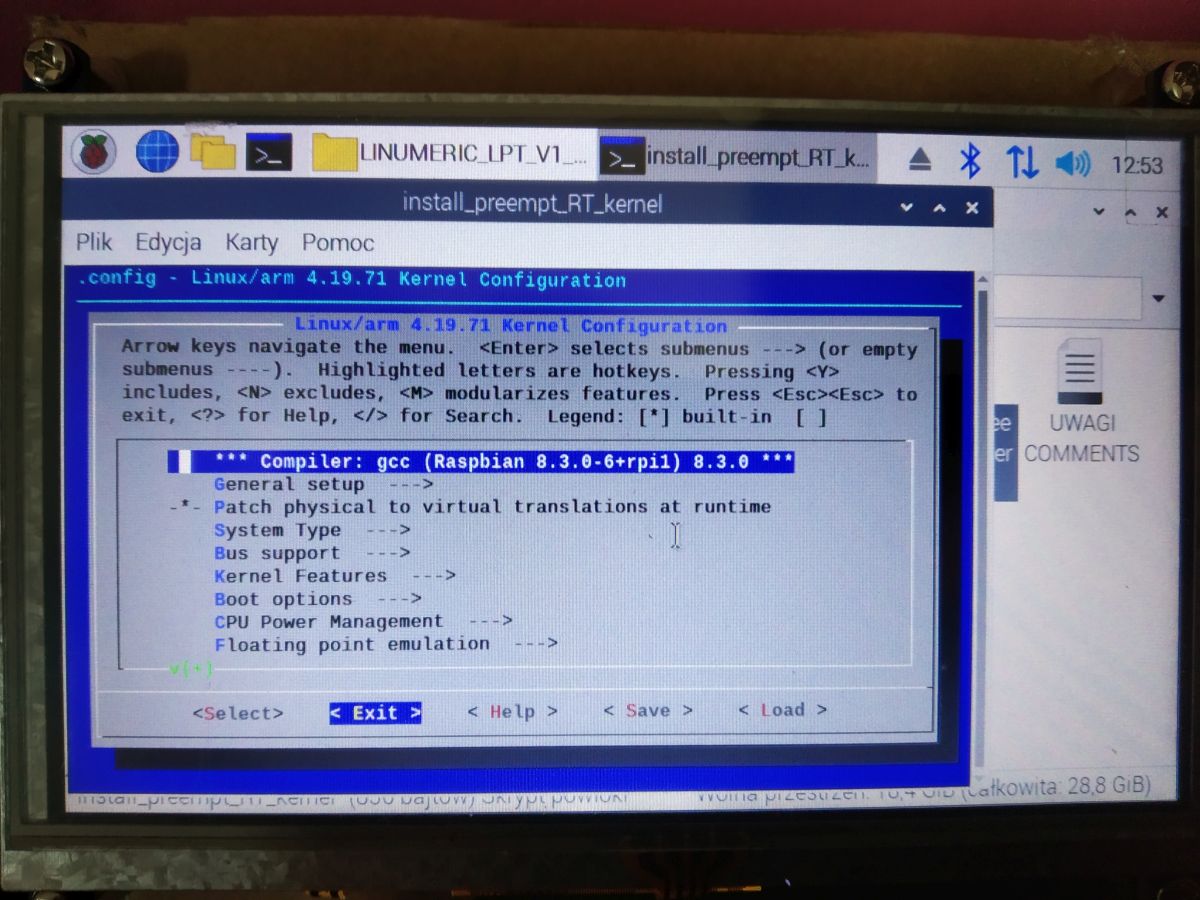
After the installation is complete, the computer will restart. To check if the RT kernel has been installed, run the terminal and type:
uname -a

We will get the name and number of the kernel, there should be magic rt characters in it, it means that the real time kernel is running.
Then again go to the LINUMERIC_LPT_V1_RPI4 directory and double-click on the install_linumeric_LPT file

We choose the option Run in terminal emulator
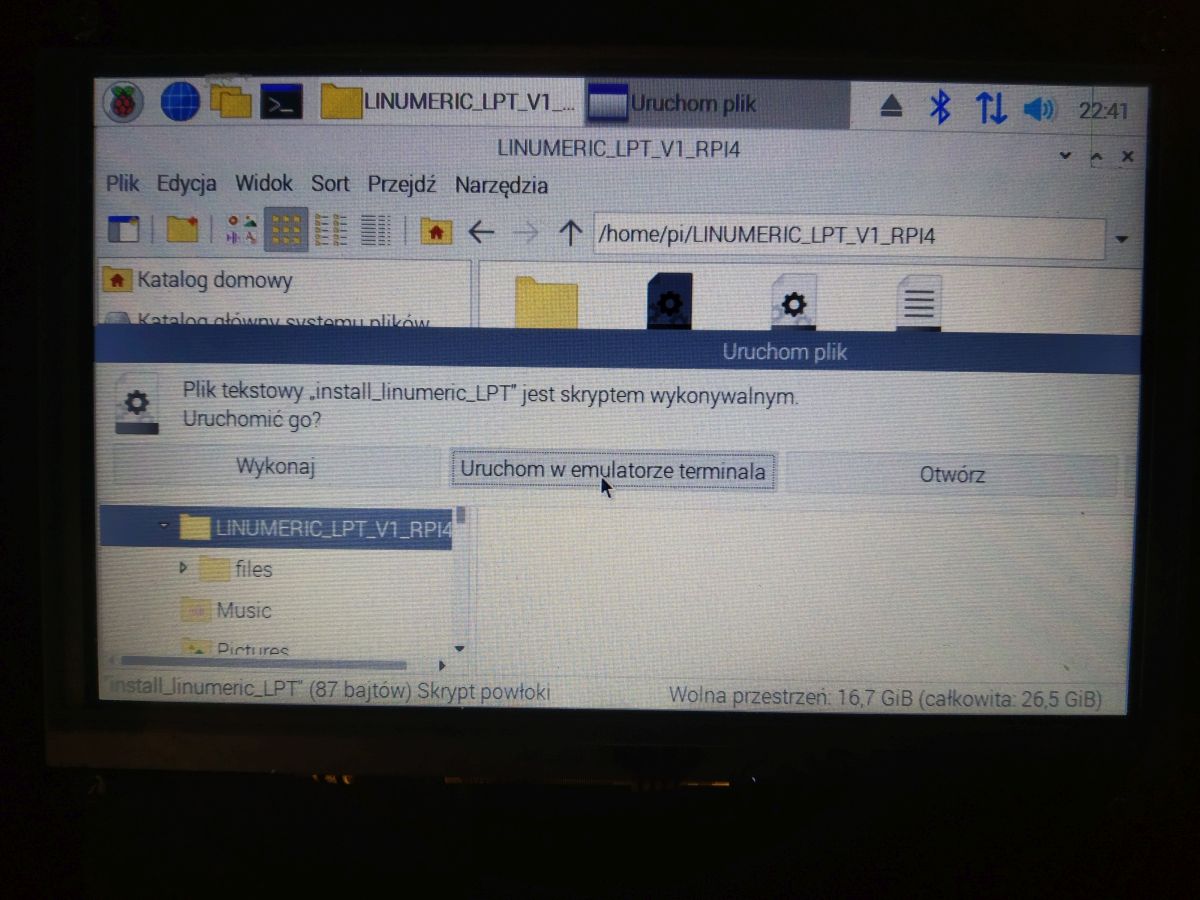
The installation will start and it may take several dozen minutes.
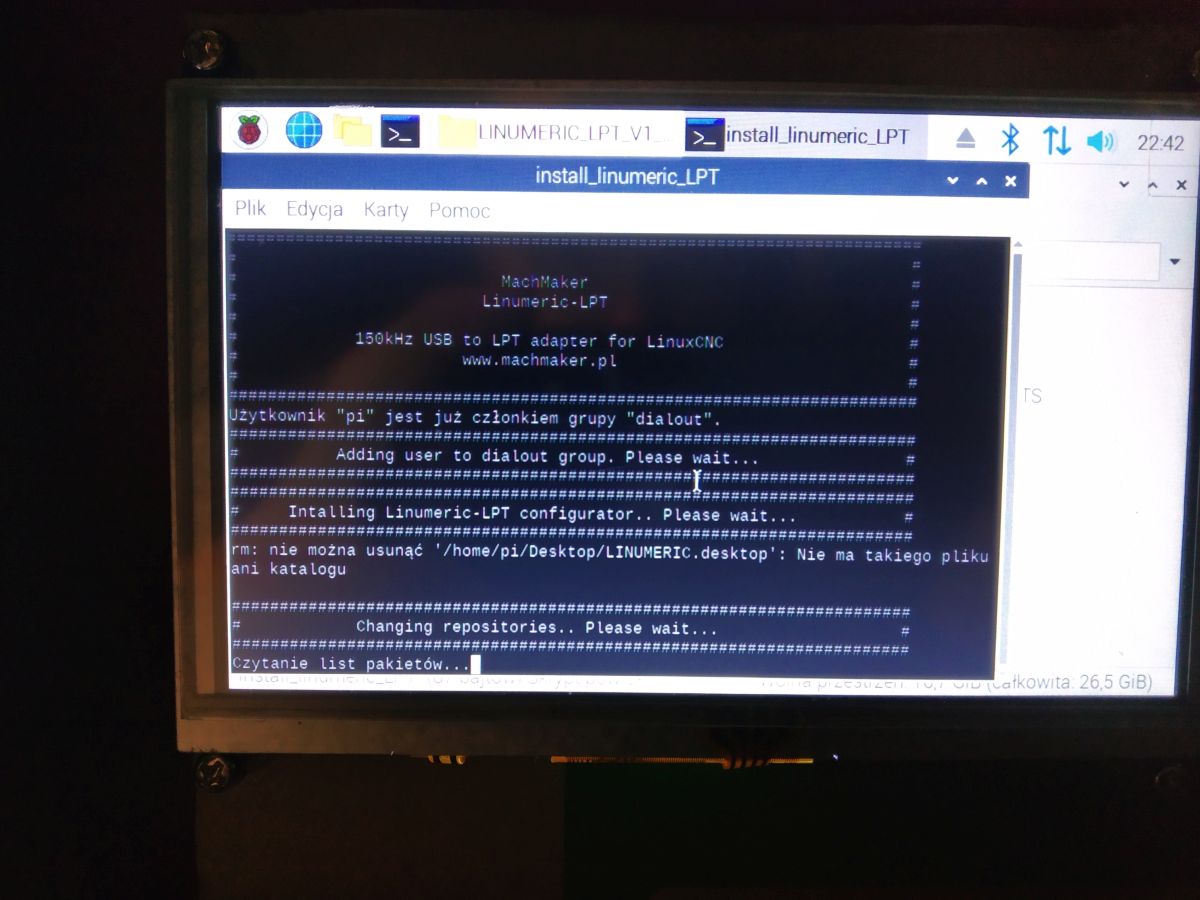
Upon completion, we will receive a Done message.
The configurator application icon should appear on the desktop

And on the LinuxCNC menu

Still a little optimization. Because real-time processes use the processor cores in the order from the last one, if we have more than one core, it is worth excluding it from use for the system so that it remains completely available to the RT process. So we start the terminal and type the nproc command and hit enter. The number of processor cores will appear.
We start the kernel command line edition by typing in the terminal:
sudo nano /boot/cmdline.txt
and enter in the line:
isolcpus = 2,3
Note, the cores are numbered from 0, so if we have, for example, 4 cores, they have the numbers 0, 1, 2, 3 and then enter the number 3. If the processor has, for example, 4 cores and each core supports 2 threads, we have 8 cores and then we enter the last 2 numbers, i.e. 6.7.

Save (ctrl + o) and close (ctrl _ x)
We restart the computer.