
Artykuły / Articles
Minimum hardware requirements
LinuxCNC should work well on a computer that has:
- processor clocked at least 700 MHz x86 (1.2 GHz x86 processor recommended)
- at least 384 MB RAM (512 MB - 1 GB recommended)
- hard disk at least 8 GB
- graphics card with a resolution of at least 1024 x 768 that does not use proprietary NVidia or ATI fglrx drivers and which is not a built-in video chip that shares main memory with the processor
- internet connection (not strictly needed but very useful)
What determines the correct operation of LinuxCNC
Please note that it is not the processor clock speed or the amount of RAM that determines whether the computer is suitable for real-time operation. The most important parameter is the time during which the processor will start the task from the moment the task is requested. The ideal value would be 0, i.e. the processor would perform the task immediately, but this time is different and variable, different for different types of computers. The deviation from the basic time is called jitter. If the jitter value is below 20us, then the computer is very well suited to work with LinuxCNC. If the value is up to 50us then you can still use the computer to control with LinuxCNC, however you have to be aware that the frequency of step control will be lower. If jitter values exceed 50us, then one should rather take into account that the computer is not suitable for this task.
Computer test before installing LinuxCNC
At http://wiki.linuxcnc.org/cgi-bin/wiki.pl?Latency-Test
there is a list of tested hardware configurations with results. However, if you want to test our configuration, just do the Latency-Test before installing anything. To do this, you need to download from LinuxCNC the .iso debian image from LinuxCNC, save it on a bootable medium (CD, pendrige) and run the so-called version on your computer live, i.e. loaded into memory directly from bootable media.
Step 1:
Download the system image by clicking the link below:
http://www.linuxcnc.org/iso/linuxcnc-2.7.14-wheezy.iso
Step 2:
Create a bootable media with the downloaded image
Step 3:
Start the computer that will be tested with the option of booting from USB or CD (depends on the media)
Step 4:
After the boot menu appears, select the Live option

Step 5
After starting the system I click on menu -> CNC-> Latency Test

How to do the Latency-Test
Latency-test is a tool provided with Linux-CNC for testing a computer for real-time operation. The latency test configures and runs one or two threads in real time:
- Basic - fast with a period of 25us
-Servo - free with a period of 1.0 ms.
This default configuration maps the configuration pattern for LinuxCNC.
Each time the thread is started by the scheduler, the time elapsed from the previous thread start to the current thread start is measured. In an ideal system, this time would always be the same as the duration of the thread. In fact, the measured value differs from the thread's work period and it is the value of this difference (both plus and minus) that is called Jitter.
To start the Latency test, start the computer with LinuxCNC and start the terminal. In the terminal please enter:
latency-test
and press Enter.
A test window will appear that looks like this:
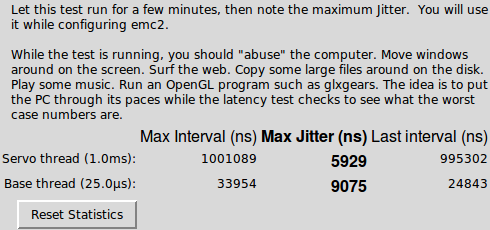
ATTENTION! During Latency-test you should not run LinuxCNC.
Leave the Latency test running for a minimum of 15 minutes. During this time, load your computer:
- copy large files
- browse the internet
- move windows around the screen
The measurement value is the maximum value from the Max Jitter column, i.e. for example from the screen above it is 9.075us.
More information:
http://linuxcnc.org/docs/html/install/latency-test.html
How to prepare your computer for LinuxCNC
If your computer does not give satisfactory results during the Latency-Test, then there is no reason to delete it. You should look at whether it does not have any options enabled (e.g. some energy management mechanism) which just causes large delays.
Graphic card
Many embedded video circuits cause poor real-time performance. The worst are those that use part of the system's RAM for video ("shared memory"). If you have real-time problems with a system that uses an integrated graphics card, the first thing to do is turn it off and connect another graphics card. In addition, the closed source NVidia driver does not work in real time, so if you have an NVidia card, you should try the "nv" or "vesa" drivers. Generally, NVIDIA should be avoided.
Sound Card
Disable the bios sound card if possible. The machine driver is not a computer for games and plays, while the machine does not need to work the sound card.
Other settings
Generally, everything that can be done and what is not necessary for work should be turned off in bios. All power saving modes, CPU frequency scaling, etc.
Source:
http://wiki.linuxcnc.org/cgi-bin/wiki.pl?TroubleShooting
Control interface
The most popular and the easiest way to control is control with software generation of signals / pulses on the parallel port (so-called LPT). This causes some limitations in the frequency of control and generates a load on the processor, however, for most applications it is sufficient. Using this method of control is easily available and cheap or even free. All you need is a computer equipped with an LPT port or a USB-LPT adapter called Linumeric-LPT.